Two-factor authentication (2FA) adds a temporary code to your password to secure your TimeTonic account. Even if your password is compromised, nobody can sign in without that code. This article covers activation for an individual account, then the case where several people share the same account.
Enable 2FA on your account
Open your account settings from the profile icon at the top right of the screen. In the Account Information section, turn on Enable Two Factor Authentication.
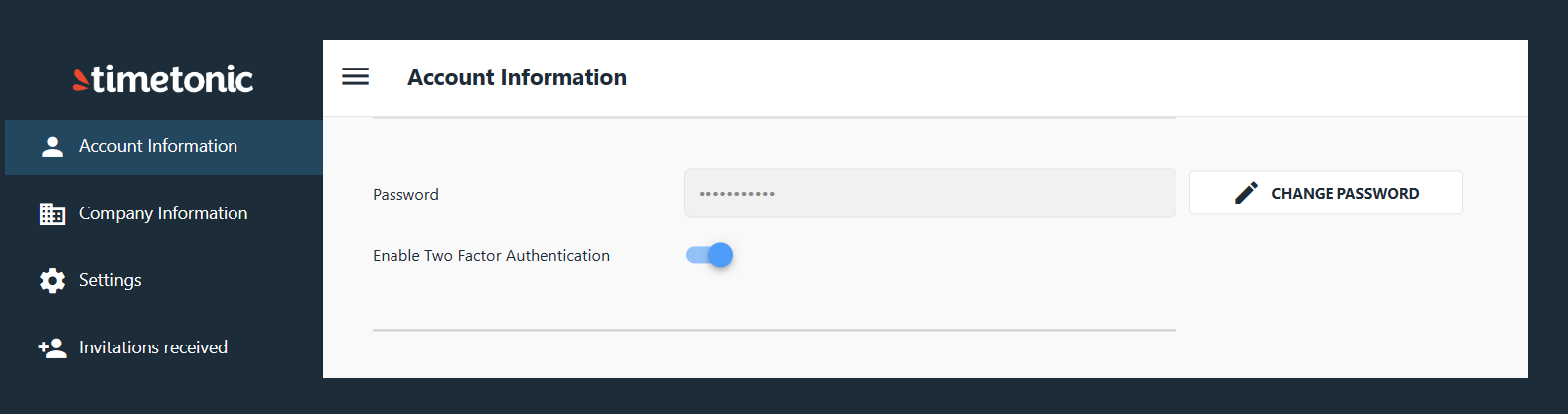
A configuration window opens.
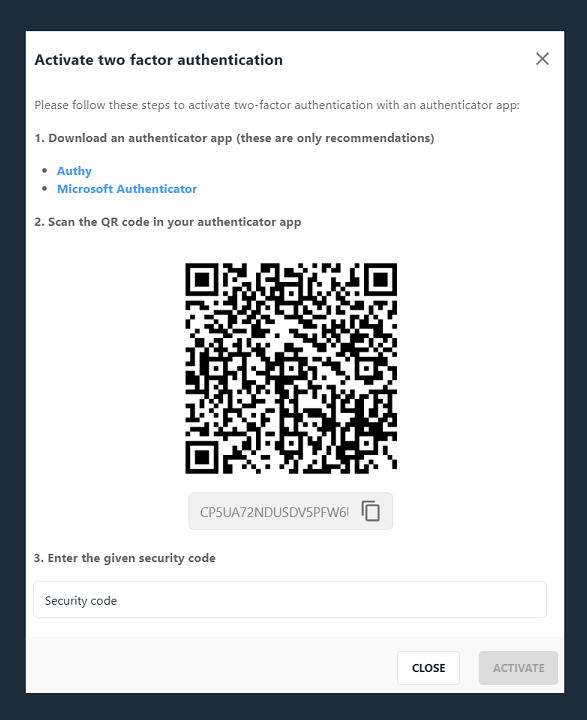
1
Install an authenticator app
Authy and Microsoft Authenticator are recommended, but any compatible app will do.
2
Scan the QR code shown by TimeTonic
In the app, add an account and scan the code.
3
Enter the security code in TimeTonic
The app shows a six-digit code. Type it into the Security code field, then confirm with Activate.
Below the QR code, the window also shows a secret key in plain text, with a copy button. It is used when scanning is not possible, and above all when several people need to sign in to the same account. See the next section.
Signing in once 2FA is active
At each sign-in, a third element joins your ID and password: the security code, read from your authenticator app.
This code is regenerated every 30 seconds. It is never the same twice, which makes it a one-time password.
Several people signing in to the same account
This is the least documented case, and yet the most common in a team: a single TimeTonic account used by several people to work in the same workspace. Turning on 2FA must not lock everyone else out.
Never pass the QR code around, pass the secret key. A QR code travels badly, disappears from the screen and can be photographed without anyone noticing. The key in plain text, just below the QR code, can be copied and shared cleanly.
1
One person enables 2FA
They follow the procedure above, and copy the secret key shown below the QR code before closing the window.
2
They share that key through a secure messaging channel
An encrypted channel, to the people concerned only. Never by ordinary email, never in a thread that will stay readable afterwards.
3
Each team member opens their authenticator app
They add an account and choose Other account, rather than a work or personal account.
4
On the scanning screen, they choose Enter code manually
The app offers to scan a QR code. Below the scanning frame, the Enter code manually button lets them type the key instead.
5
They fill in an account name and paste the secret key
Choose a clear account name, the same one across the team, then confirm with Finish.
The result. Every app configured with the same key shows the same six-digit code, at the same moment. Each team member can therefore sign in to the shared account from their own phone, without depending on whoever enabled 2FA.
What a shared key implies
This setup solves a real team problem, but it has consequences worth knowing before you put it in place.
| What changes |
What it means |
| A shared key is a shared identity |
Sign-ins no longer tell you who connected. Tracking happens at account level, not per person. |
| When someone leaves, the password comes before the key |
If they had their own account, it is deleted and their 2FA goes with it: there is nothing more to do. On a shared account, however, they still know the ID, the password and the key. Change the account password first: that is what cuts access, since the key on its own gives nothing, it is only the second factor. Regenerating the key comes afterwards, if you want to. |
| The key travels with the password |
On its own it is not enough, but combined with the password it opens the account. So it does not belong in a shared document, a chat thread or a screenshot. |
This setup only concerns shared accounts. If each person has their own TimeTonic account, there is no key to pass around: everyone enables their own 2FA, with their own key. That is always the situation to prefer when it is possible, because it preserves traceability and a departure is handled by simply deleting the account.
Giving each person their own account → Add and modify users, then manage access · Managing member permissions
Why use 2FA
A password on its own can be guessed, reused elsewhere or captured by phishing. With 2FA, a stolen password is no longer enough: the phone that generates the code is required too.
Our blog post covers the principle and the use cases → What is 2FA and why you should use it.