The Attachment field allows you to add, view, edit, or download files directly from your TimeTonic forms.
You can store images, documents, or any other type of file, and customize its behavior according to your needs: signature, images only, annotations, or single files.
Configure an Attachment field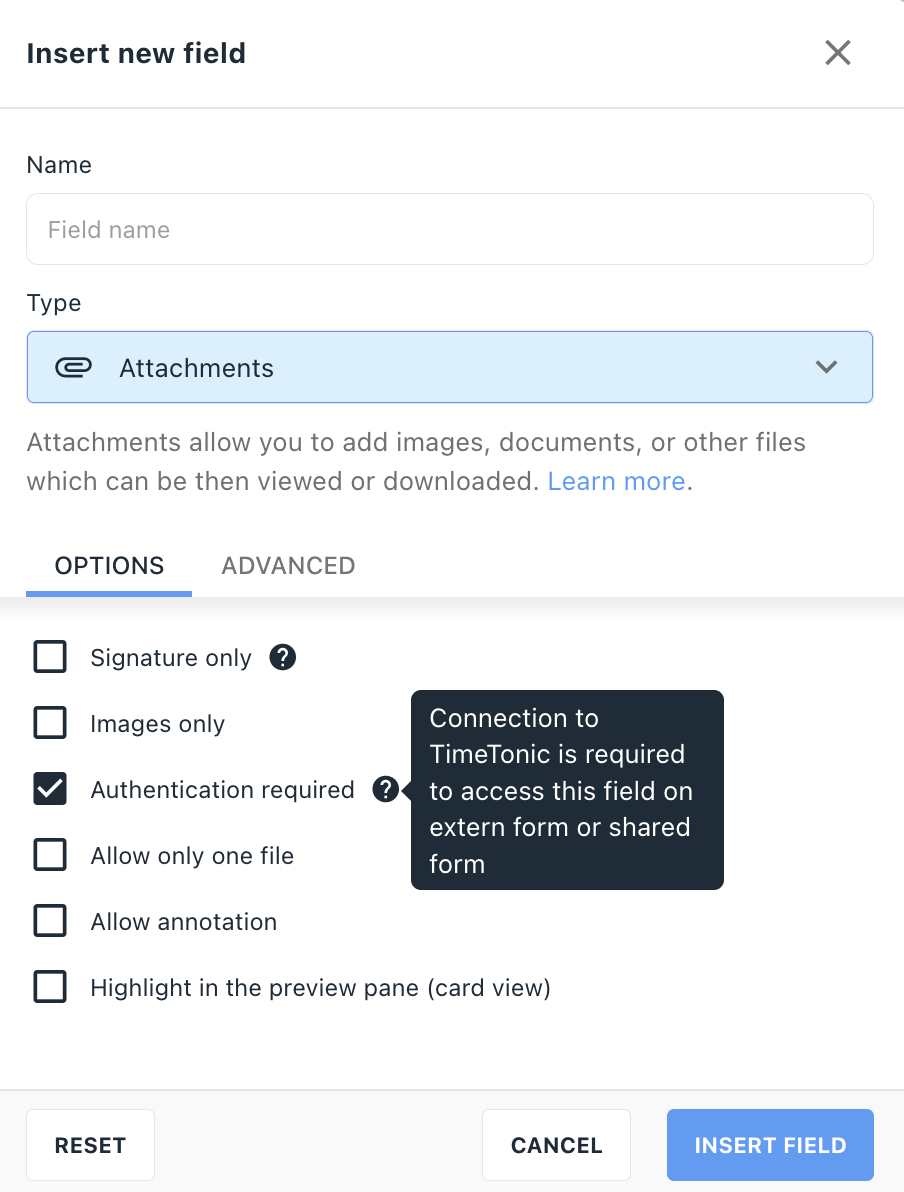
Add an Attachment Field
- Open the table where you want to add an attachment.
- Click on Add a column.
- Select the type Attachment.
- Customize the field behavior in the Options tab.
Authentication required: ticked by default. The user must be logged in to TimeTonic to view or edit the attachment from an external or shared form.
Available options:
Signature only
Enables an electronic signature area within the form.
Users can sign directly from their mobile device or an external form.Images only
Restricts files to image formats (
.png,.jpg,.jpeg,.webp) up to 200 MB
Ideal for worksite photos, product images, or proof documents.Authentication required
Requires the user to be logged in to TimeTonic to access or modify the attachment.
Attachment Management: Linked Options
Allow only one file
Prevents multiple uploads and ensures only one document is stored. Recommended for unique documents such as quotes, invoices, or signed reports.
Allow replacement
Allows updating an existing document without creating duplicates. Useful for managing successive versions of the same file.
- Document already present → generating a new file is blocked.
- “Allow replacement” enabled → the existing file is overwritten and automatically updated with the new one that replaces it.
- ℹ️ Assign the attachment column in the document generation settings to automatically include the file.
Allow annotations
Enables users to annotate an image (e.g., highlight, add text, or arrows).
Annotations can be created or edited directly from the TimeTonic mobile app.Highlight in card view
Displays a direct preview of the file in the card view or in the preview panel.
Helps visually identify key files without opening the record.